Verify Shadowrocket on its product page, not by its search ranking. Before buying, check the developer name, official icon, and app ID. If you already have the app, you can return to the App Store to verify it. This guide shows where to check, what to do if details don’t match, and how to distinguish app identity from connection settings after installation.
Start here: Check all three identifiers
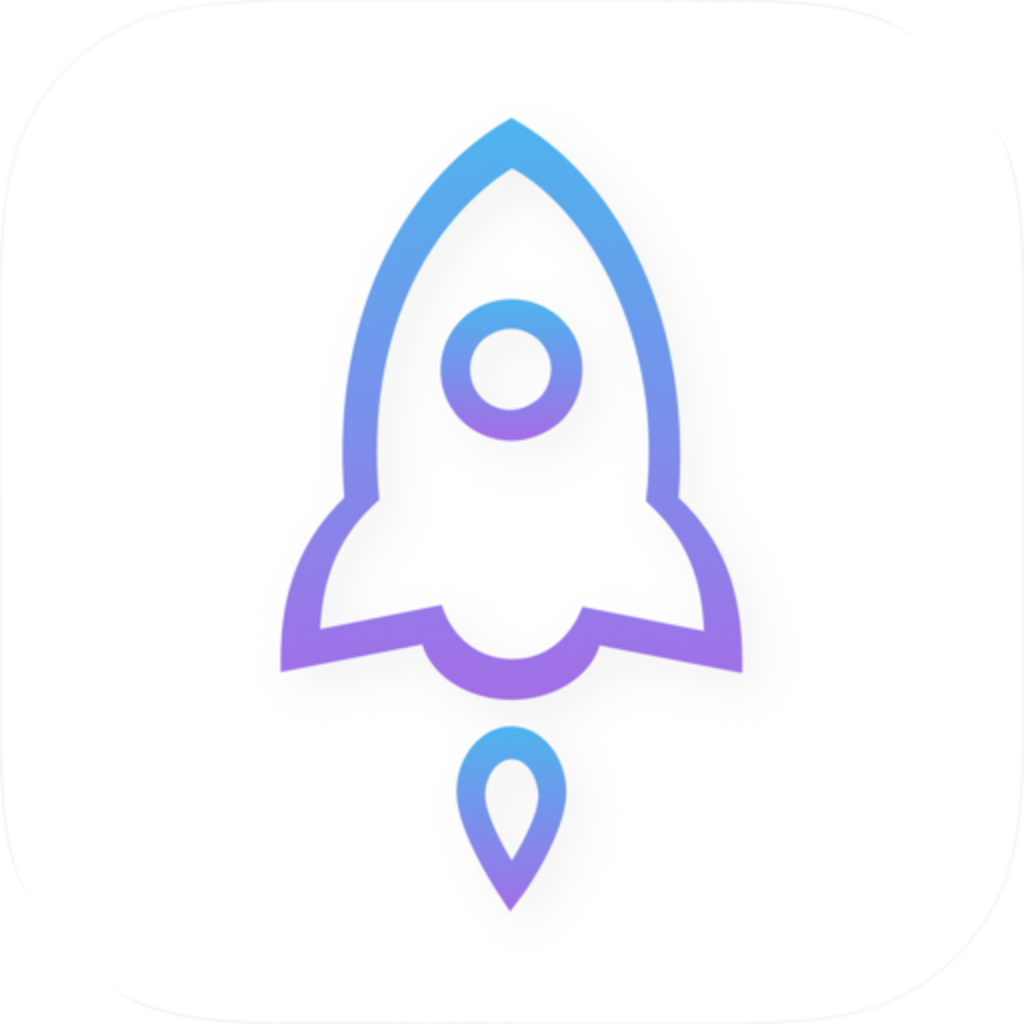
When searching for “Shadowrocket,” don’t identify the app by its title, a similar-looking rocket, or its position in the results. Search results are a starting point; verify the product page itself. Check that the developer is Shadow Launch Technology Limited, the app ID is 932747118, and the icon matches the official one shown below.
Each detail serves a different purpose: the developer name identifies the publisher, the icon helps with a quick visual check, and the app ID points to the specific App Store listing. Titles and icons can look similar, so neither replaces checking the app ID. Ratings, review counts, and search position are not reliable ways to verify the app.
If any details don’t match, don’t buy
If anything differs, leave the current listing and open the App Store product page again from this site’s download page. Don’t dismiss a different publisher or app ID as a close match in the name.
Before you buy: Open and check the product page
These steps explain how to verify the iPhone / iPad listing in the App Store. Store language and system version may affect where details appear, but the name and app ID to check remain the same. The iPhone / iPad app is a one-time $2.99 purchase; check the App Store listing for system requirements. The Mac (Apple silicon and Intel), Windows, Android, and Linux versions are free.
-
Open the download page
Visit this site’s download page and find the App Store button for iPhone / iPad. You can also search for Shadowrocket in the App Store, but don’t decide whether to buy based only on the results list.
-
Open the product page
Open the app listing and check its name and icon. Scroll down to the product information. Don’t mistake names in search snippets, reviewer names, or the app description for the developer field.
-
Verify the publisher
Check the developer or seller information and confirm the name is Shadow Launch Technology Limited. If the name is truncated, open the details or expand the information before deciding.
-
Check the shared link
Use the product page’s share option to copy the link, then paste it into Notes or a browser address bar. Confirm that the path includes
id932747118. You don’t need to confirm payment until you’ve finished checking. -
Get the app only after verification
Once the developer, icon, and app ID all match, purchase or redownload the app as prompted by the App Store. If the store reports a compatibility issue, check the system requirements on the product page instead of relying on a minimum version inferred from this guide.
If details don’t match after opening a result, go back and find the correct product page. Don’t pay first and try to identify the app by its features afterward. A shared keyword in two app names does not mean they’re the same App Store listing.
Check the icon and product link
Below is the official Shadowrocket icon used on this site. It shows a rocket outlined in blue and purple on a white background, which can help with a visual check. Compare the complete icon, not just its color or one detail. Even if an icon looks similar, you still need to verify the developer and app ID.
| What to check | Verify | Doesn’t prove it’s the same app |
|---|---|---|
| Developer name | Shadow Launch Technology Limited | Reviewer names or brand names in the description |
| Icon | Compare with the official icon above | A similar rocket outline or color scheme alone |
| App ID | id932747118 in the link path | Search terms, numbers in the title, or query parameters |
This is the specific product page address used on this site. In the address, /us/ is the store region path; id932747118 is the app identifier you need to check. The readable words in the link don’t all have to match exactly. And finding those digits somewhere in a link isn’t enough to verify it.
https://apps.apple.com/us/app/shadowrocket/id932747118When checking the link, make sure the actual domain is apps.apple.com. Seeing a store address printed in a webpage doesn’t mean your browser is open to that address. Likewise, a link to a search results page isn’t a link to the app’s product page. If you’re unsure about the address, return to this site’s download page and open the listing again.
Already installed or paid? Verify it in the App Store
You don’t have to identify an installed app by its Home Screen icon alone. Return to the App Store product page and check the three details above, then look at whether the page shows “Open,” a download option, or a price. The button can help confirm the installation status for your account and device, but it doesn’t verify the publisher or app ID by itself.
- If the product page shows “Open”: After checking all three details, launch the app from this product page to avoid tapping a similar-looking icon on your Home Screen.
- If the product page offers a redownload: First check whether you’re signed in to the Apple Account used for the original App Store purchase, then review your purchased apps.
- If you remember buying it but still see a price: Check the app name in your purchase history and confirm which Apple Account made the original purchase. Don’t confirm another payment right away.
- If your purchase history shows a different app: Keep the order details and contact Apple through its App Store purchase history and support process. A receipt for another app does not prove you have a Shadowrocket purchase.
App identity and network service are separate. A one-time app purchase does not include a network plan. Get subscription details from your own service provider; this site does not provide, sell, or recommend nodes, subscriptions, or providers. A connection failure, expired subscription, or change in provider settings does not by itself mean there’s a problem with the app’s identity.
After verification: Don’t use connection behavior to identify the app
Once you’ve confirmed the product page, check your configuration before using the app for the first time. Home, Config, and Settings are separate areas. Global Routing controls how traffic is routed while connected; it isn’t an app verification switch. The comparisons below explain settings in the same app and are intended for troubleshooting after you’ve verified its identity.
Config
RecommendedUse the rules and policies in the current Config to handle traffic. The outcome depends on the configuration itself. FINAL is the policy used when none of the earlier rules match; it doesn’t always mean direct traffic.
Use when: You have a trusted, reviewed rule configuration and need to route traffic by rule
Proxy
Route traffic through the proxy. This can help you check whether Config rules are affecting access. It can’t fix an incorrect server address, authentication details, or an inactive service.
Use when: You’ve confirmed your server settings and want to compare rule-based routing temporarily
Direct
Route traffic directly. Don’t expect this mode to use the selected proxy server to reach a destination. Different results in this mode don’t indicate that the app came from the wrong source.
Use when: You want to check your local direct connection and compare it with the proxy route
Global Routing may also use Scene to handle traffic by scenario. That’s another routing option, not an app identifier. To troubleshoot automatic connections, check Settings → On Demand. To inspect rules, go to Config and review the actual DOMAIN-SUFFIX, GEOIP, IP-CIDR, and FINAL entries. Don’t keep switching these settings to “prove” the app is official.
If you already have a subscription, add it using the details from your provider: Home → “+” → Type → Subscribe. Update it as needed. A successful import only means the link could be processed; it doesn’t verify the App Store listing. If import fails, first check that the link is complete and hasn’t expired, and that your network can reach it.
FAQ: Similar names, pricing, and downloads on other platforms
Can I buy it if it’s the top search result?
Search ranking doesn’t verify an app. Open the product page, check for Shadow Launch Technology Limited, verify id932747118 in the shared link, and compare the official icon. Search position has no bearing on these three checks.
What if the icon looks similar but the developer is different?
Stop the purchase and return to this site’s download page to open the iPhone / iPad App Store product page. Don’t ignore the developer field because a rocket icon looks similar, and don’t mistake a mention of Shadowrocket in the description for the publisher.
Why do the desktop and Android downloads use a different link?
Download options vary by platform. The iPhone / iPad app is a one-time $2.99 App Store purchase. The Mac (Apple silicon and Intel), Windows, Android, and Linux versions are free; choose your platform on this site’s download page. The App Store app ID check applies to the listing discussed here.
I bought it, but it won’t connect. Did I buy the wrong app?
First verify the app using the developer, icon, and app ID. If all three match, check your provider’s settings, subscription status, and current selection under Home → Global Routing. App identity and whether a network service works are separate issues. You don’t need to buy the app again to troubleshoot a connection.