01 / App availability
App availability depends on your App Store region
Whether Shadowrocket appears in the App Store depends first on the country or region of the Apple Account used for purchases, not the device’s display language. Shadowrocket isn’t available in the mainland China App Store. If you can’t find it, check your App Store region before changing your search terms. Switching the system language to English, changing the date format or using a different keyboard won’t switch your account to another storefront. Checking in this order helps distinguish a regional availability issue from the app being removed from every storefront.
Search results and the product page are two different checks
Search results depend on your keywords, storefront and ranking. They can help you find an app, but they aren’t enough to verify it. Search for the full name, Shadowrocket, and don’t buy based on ranking if other results have similar names. The product page linked from this site includes the fixed app ID, which you can use to confirm you’ve found the right listing. Even if the link uses the US storefront path, what you see may depend on your account’s current App Store region. Check the product page and prompts shown on your device.
A message saying “Not available in your country or region” is more conclusive than a search that temporarily shows no results. The first means the App Store has checked the target listing against your region; the second may be caused by your search terms or the search page. Note the full message, then check your account region. Don’t cycle through similar names hoping to find a match. A different app ID means it isn’t the target app, even if the name is the same.
What your App Store region, location and network affect
Your account region determines the App Store catalog and available payment terms; it’s separate from your device’s physical location. Network conditions affect whether the product page loads, a payment request goes through and the app downloads. A page failing to load doesn’t prove your region is unsupported, and refreshing repeatedly won’t resolve an explicit regional restriction. Keep these causes separate: check your account for catalog issues, your network for loading issues and the payment prompt for transaction issues.
On one iPhone, the account used for iCloud may differ from the one used for Media & Purchases. Working photo sync and being signed in to an Apple Account don’t guarantee the App Store uses that same account. Purchases are generally tied to the account used to make them, not to the device. Seeing the app on another device at home only confirms that device’s current App Store status; it doesn’t prove this device has the same purchase eligibility.
Check your account before changing its region
If you need to change your country or region, do so through the account settings provided by the system, and review the listed requirements first. Your account balance, active subscriptions, pending orders and Family Sharing group may affect whether the change can be completed. Payment methods and billing details must meet the requirements of the target region; don’t enter information you haven’t verified. Don’t sign out of your entire device just to download one app. First check which account is used for each service, then decide whether to make a change.
Changing regions doesn’t automatically recreate your purchase history in the new storefront. Check existing apps, purchase history and billing details separately. If your account has a refund, payment review or Family Sharing change in progress, it’s best to resolve that first. Don’t start another purchase until you’ve confirmed which App Store account is in use. The next section explains how to check your current account status; it doesn’t ask everyone to change regions.
02 / Check your account
Check the account used for the App Store
Start with the account shown under Media & Purchases. On your iPhone or iPad, open Settings, tap your account name at the top, tap Media & Purchases, then choose View Account. You may need to authenticate before you can view items such as Country/Region. Labels and layouts vary by system version. The goal is to open your App Store account details—not Language & Region or the device-name page.
Distinguish three details that are easy to mix up
Check the account name at the top of Settings, the storefront account shown in your App Store profile and the payment account on your billing record separately. This is especially important if you’ve used different App Store accounts on multiple devices. Don’t rely on the profile picture alone. Your account email can help you identify it privately, but don’t post it in a public support request. To restore a purchase, identify the account that actually made it—not just the one you use most often now.
You can also tap your profile picture in the App Store to view the current storefront account and access your app history. Depending on your system version, the list may be called Apps, Purchased or something similar. Look for the list of apps previously acquired by that account. Note which account is shown, then return to Settings to check its country or region. If the two screens appear inconsistent, reopen them to confirm before switching accounts. Don’t change accounts in the middle of an unfinished payment.
| Where to check | What it confirms | What it doesn’t confirm |
|---|---|---|
| Settings → Language & Region | Device language and regional formats | App Store account region |
| Media & Purchases → View Account | Store account and country or region | Whether the current network is working |
| App Store profile | App list and current storefront account | Purchase history from another account |
| Account purchase history | Order details and processing status | Connection status inside the app |
Checking your region doesn’t change it
Opening the Country/Region page is just a check; you don’t have to change anything. If your current region is suitable, return to the product page and continue. If it isn’t, read the system’s requirements before making a change. The system may prevent changes while your account has a balance, services that need attention or an active Family Sharing membership. Resolve the specific issue it lists rather than repeatedly submitting the same request in different screens. If you’re unsure what a step will affect, it’s safer to leave your current settings unchanged.
If the page asks you to sign in again or verify your identity, do so in the system account settings. Don’t share verification codes, passwords or recovery information with anyone. Identity verification and purchase confirmation are separate steps: one confirms account access, the other confirms a transaction. Before entering a password, check which account is being verified and why. If you just cancelled a payment, check the order status in your account before returning to the product page.
Keep only the details you’ll need for a future restore
After checking, you can note the purchase account, App Store region and app ID in a secure personal record. There’s no need to record your password or save a full screenshot of your account page. When you move to a new device, knowing which account made the purchase is more useful than remembering which old device had the app installed. If you have several family devices, you can also note which ones use a personal purchase and which ones access the app through Family Sharing, so you don’t mistake shared access for your own purchase.
If you can’t open the account page, first check whether other system account services are accessible, then see if the current network requires you to sign in through a browser. Devices managed by a school or organization may also restrict account changes; only the device administrator can address those restrictions. Once you can view your account details, move on to app verification and purchase. This keeps account-access problems from carrying over into the next step.
You’re done when you know which App Store account is in use, its country or region, and which purchase account to check if you need a restore. You don’t need to sign out of every system service and back in just to confirm. Nor do you need to delete Shadowrocket if it’s already installed. Keep the app and its settings intact while you check your account.
03 / Verify the official app
Cross-check the developer, icon and app ID
To verify the Shadowrocket listing on iPhone or iPad, check the developer, Shadow Launch Technology Limited, the official app icon and app ID 932747118. Once all three match the same listing, review the purchase or download button. The name alone isn’t enough, and the first search result isn’t proof of identity. For listings with the same name, similar spelling or similar colors, open the full product page and check each detail. Don’t treat a similar title as verification.
Check the full product page, not just the search preview
Search results usually show only an icon, name and brief description; developer information may be truncated. Open the listing and check the full developer or seller name, word by word—not just the word Shadow. Some pages also link to other apps from the developer, but that link doesn’t replace the identity details on the current listing. Always verify the app you’re about to get. Don’t switch between multiple search pages until you lose track of which listing you’re checking.
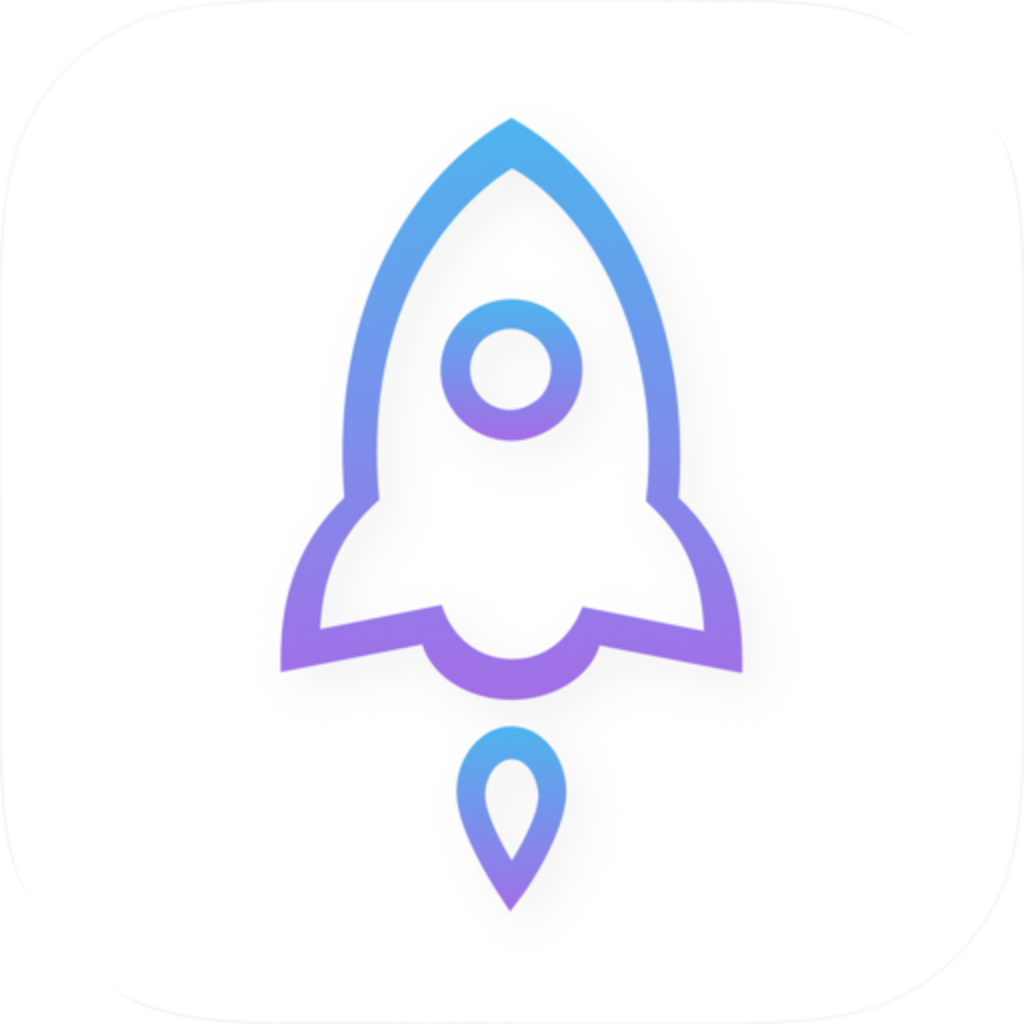
Shadow Launch Technology Limited
App ID 932747118
The official icon is a blue-and-purple outlined rocket on a white background. The icon shown here is for comparison. Don’t identify the app based only on its rocket design or similar colors: icons can be imitated, and device themes or display settings can affect how they look. Check the icon alongside the developer and app ID. If the product page doesn’t match the details here, stop before making a purchase and check the link again. Don’t let a similar-looking image outweigh differences in the text details.
The app ID is a stable way to identify the listing
The id932747118 in the product link identifies the app covered by this guide. After copying or sharing the product page, check that the link still includes this ID at the end. The country or region in the URL may vary by storefront, but a different number means it’s not the same app. If your browser redirects, verify the product page details again. A screenshot, chat message or handwritten app name is less reliable for cross-checking than the full product page.
On the App StoreVerify the Shadowrocket listing
The iPhone and iPad version costs $2.99 as a one-time App Store purchase. The Mac, Windows, Android and Linux versions are free; local storefronts show the price in their local currency. If a new listing appears as a free app and doesn’t match the specified app ID, don’t proceed just because the name is the same. Also, a cloud icon on the account that made the purchase means you can redownload the app; it doesn’t mean a new listing is free. Check purchase history to tell the difference.
Verify the app separately from checking its App Store status
An Open button usually means the app is already installed; a cloud icon generally means it can be downloaded again; a price means you should check the purchase account or transaction requirements. These buttons indicate acquisition status, but they don’t verify the app’s identity. First confirm which app you’re looking at, then interpret the button. If the installed app isn’t the same listing as the target product page, note where its current settings came from before proceeding. Don’t enter an existing subscription into an app whose identity you haven’t confirmed.
The download path for computers and Android devices is different. Use this site’s downloads for all platforms and choose the installer for your device. Don’t use the App Store app ID to identify a desktop installer. Mac users also need to choose between Apple silicon and Intel; the download page covers both options and the steps for allowing the app to run. The three checks on this page apply to the iPhone and iPad App Store listing, not to every installer format.
Once verified, save the product page so you can reinstall from your Purchased list or the confirmed listing later. For a shorter checklist, see How to check an App Store listing with a similar name. When describing an issue to someone else, share only the app name, developer and app ID. Don’t include your App Store account, payment details or a full page containing personal information.
04 / Purchase and billing
The one-time purchase is for the app
The iPhone and iPad version costs $2.99 as a one-time App Store purchase. The Mac, Windows, Android and Linux versions are free. The US storefront shows the price in US dollars; other available storefronts display local currency and follow their own billing rules. The amount charged is the one shown on the confirmation screen. A one-time app purchase covers the app only; it doesn’t include connection services. App purchase ≠ service plan. You’ll need to arrange any subscription or server details yourself; get subscription links from your own service provider.
Check the app, account and price before confirming a purchase
Open the verified Shadowrocket product page and tap its purchase button. Read the system confirmation, then check the app name, current account, displayed price and payment method before completing any required authentication. Depending on your device, you may need to use the side button, biometric authentication or your account password; follow the system prompt. Don’t switch App Store accounts after the confirmation appears, or submit multiple purchase requests because the page seems slow to respond.
After confirming, check whether the product page starts downloading and review your purchase history if needed. Payment confirmation, order processing and downloading the app are separate but connected stages: an order appearing doesn’t mean the app has finished downloading, and download progress doesn’t mean an existing subscription can connect. If something stops, identify the stage before taking action. This helps avoid mistaking a network download issue for a missing purchase record.
iPhone and iPad under the same purchase account
An iPhone and an iPad can use the same app purchase. On another compatible device, sign in with the account that made the purchase and download the app again from its Purchased list. The destination device must meet the requirements shown on the product page, and its App Store account must be the original purchase account. Being signed in to the same iCloud account on another device doesn’t prove the App Store purchase is tied to that account. System requirements are as listed on the App Store page; check compatibility first, especially on older devices.
If the redownload option still shows a price, pause and check the account and Purchased list in the next section instead of immediately confirming another purchase. Having the app on an old phone only proves it was installed there; it doesn’t prove the account currently signed in owns the purchase. Family Sharing access also has its own conditions and isn’t the same as a personal purchase. See the Family Sharing section on this page.
If payment fails, don’t rush to try again
If you see a message that your payment method was declined, billing details need updating or an order is incomplete, open your account’s payment and purchase history and check what the system requires. Available payment methods depend on your account region; use accurate information that meets the storefront’s requirements. App settings can’t resolve App Store billing issues, and changing Global Routing won’t change your account’s payment status. Don’t enter an unverified address or submit the same transaction repeatedly just to clear a warning.
If you receive a charge notification but installation hasn’t finished, first check the merchant, amount and order status shown in the notification. A pending entry at your bank and a completed App Store purchase may appear at different times; one notification alone doesn’t prove you were charged twice. Keep your order details and check the status in your purchase history. If the page says you need account support, use Apple’s official support process rather than posting payment details in a public discussion.
To check the refund process after a purchase, start with the relevant purchase record and the account steps provided by Apple. Eligibility and when a result appears depend on the store’s policies and the order status; this manual can’t promise an outcome or timeline. Don’t delete the app to cancel a transaction—deletion usually removes only its local installation data. Turning off the app’s connection also doesn’t cancel a separate service from your provider.
You’re done when you’ve verified the purchase, can find its record in the current account and understand the download status. Then you can open the app and import your existing configuration. Keep these details somewhere you can access later; don’t record sensitive credentials. Keeping the product ID and a clue to the purchase account will make it easier to move devices or reinstall later.
05 / New device and reinstall
Restore the app using the original purchase account
When moving to a new iPhone, switching to an iPad or reinstalling after deletion, first use the original purchase account to find Shadowrocket in your purchase history. “Restore” here mainly means downloading the app again from the App Store; it doesn’t automatically restore servers, rules or subscriptions inside the app. App access and local configuration are different kinds of data, so prepare them separately. If your old device still works, check how your configuration is saved and what you’ll need to restore it before migrating or deleting anything.
Redownload from your account’s app list
Open the App Store, tap your profile picture, then open Apps, Purchased or the app-list entry available on your system. Search for Shadowrocket, or view apps that aren’t on this device. Check the developer and icon before tapping the cloud download button. The exact steps may vary by system version, but the goal is always to find the app in the original purchase account’s history—not to pick a similarly named result from search.
If the list is empty or doesn’t include the app, return to your account page and confirm which App Store account is signed in. Common causes include using a new App Store account on the new device or restoring iCloud data without checking Media & Purchases. Don’t cycle through unknown accounts to see what happens. Look for clues in your own purchase history, order records or the account on your old device. Also clear any search filters in the Purchased list that might hide the app.
What to do if the button shows a price
The iPhone and iPad version costs $2.99 as a one-time App Store purchase. The Mac, Windows, Android and Linux versions are free. If you still see a price when redownloading with the original purchase account, first check that you have the specified app ID, then check your App Store account, purchase history and hidden purchases. Don’t assume the button means you have to buy again. If you’ve changed regions or joined a Family Sharing group, distinguish your personal order from app access provided by a family member.
If you hid the app, you may need to find it under hidden purchases in your account settings and unhide it. The exact steps depend on your system version. Hiding an app affects its visibility in lists; deleting it affects its installation on the device. Once you find a hidden purchase, manage it using the system’s provided controls, then return to the product page. Don’t try to refresh your account history by repeatedly deleting other apps.
Plan separately for settings on your old device
Redownloading the app doesn’t guarantee that your Home items, Config files or custom rules will be restored. Device migration, system backups and in-app import tools can restore different sets of data, so check each item after the restore. Get existing subscription links from your own service provider. If you can’t confirm a link is valid, don’t treat an incomplete address in an old screenshot as a reliable backup. Save all server details, not just the displayed name.
After migration, first check that Home shows the expected items, then check which file is selected in Config and the current Global Routing selection. Don’t update everything before you know where each setting came from; an update may change rules or overwrite manual edits. If the old device is still available, compare the items one by one. If it’s been erased, rebuild from your own configuration backup and information from your service provider. Purchase history won’t restore connection settings.
If the purchase is visible but downloading is blocked, also check device compatibility, available storage and installation restrictions. An app running on an old device doesn’t mean the new device’s current settings allow installation; an older system may also fail to meet the current product-page requirements. Check the App Store’s actual message for any option to download a version for an older system; availability isn’t guaranteed. See Chapter 7 for download troubleshooting.
When describing the issue, “purchase is visible but download won’t start” or “purchase isn’t in the current account” is more useful than “restore failed.” Review the steps in Restore a purchase after moving to a new device. Once the app is installed again, use Quick Start to check your existing configuration. Avoid troubleshooting app restoration and connection restoration at the same time, so you can tell which one is causing the problem.
06 / Family Sharing
Check purchase sharing against Family Sharing requirements
Check Family Sharing through Apple’s family group and purchase-sharing features. Don’t give someone else the purchaser’s account details. Whether a family member can get the app depends on the product page’s current sharing information, Family Sharing settings and account requirements. First check the Shadowrocket product page for its Family Sharing details, then check your family settings. Being in the same family group doesn’t guarantee every purchase will appear in each member’s list.
Check the app’s sharing details, then the family group
The product page’s feature information shows whether the app supports sharing under its current terms. The family group’s purchase-sharing setting controls how members can access eligible content. Check both. Other family members may not see an app if the purchaser hasn’t enabled the relevant sharing, or if the app is hidden. Check each setting before leaving and rejoining the family group. Changes to a family group may be restricted by system rules; they’re not a refresh button.
In Settings, open the Family area and check membership, purchase sharing and the account used for purchases. Labels vary by system version. Look for purchase-sharing settings, not just location sharing or Find My controls. Parental controls and Ask to Buy are separate conditions: correct family membership doesn’t mean a managed device can complete every download without approval. Read the system prompts and have a family member with the necessary permissions approve any required steps.
Find the app in a family member’s purchase list
Open your App Store profile and go to the Apps or Purchased list for family members. Select the person who made the purchase and search for Shadowrocket. Check the app ID, developer and icon to make sure you haven’t found a different listing in your own search results. If you can’t see any family member’s list, check whether purchase sharing is enabled in Family settings. If the list appears but this app is missing, check its hidden status, product-page sharing information and availability in your region.
Family members’ App Store countries or regions must meet Apple’s requirements for purchase sharing. A change by one member may affect which items are visible or whether sharing is available, so don’t keep refreshing the download screen on just one device. Compare each member’s current App Store status and read any restrictions shown by the system. Family Sharing issues concern family and account settings; changing Subscribe or Config in the app won’t make a missing store purchase appear.
Personal purchases, family access and app data are different
Getting the app from a family list doesn’t mean that member now has a purchase order of their own. If family membership or purchase sharing changes later, check eligibility again before redownloading or updating. Don’t assume an app downloaded from a family member’s list is permanently equivalent to a personal purchase if you plan to leave the group. To confirm your personal purchase history, check your account—not whether the app icon appears on your Home Screen.
The iPhone and iPad version costs $2.99 as a one-time App Store purchase. The Mac, Windows, Android and Linux versions are free. These are the two platform pricing options; whether a family member can access a purchase depends on the sharing requirements. If the system shows a new purchase confirmation, check whether you’re using your own purchase history or viewing a family member’s listing. Don’t assume that a missing item in the family list means you must pay again.
Family Sharing doesn’t share connection settings. Check Home, Config, Global Routing and connection permissions separately on each device. Whether an existing subscription can be used on multiple devices depends on the terms provided by your own service provider. Family access to the app doesn’t automatically expand the permitted use of a connection service. Subscription links are sensitive configuration details; don’t post them in a family group chat or public screenshot.
If the Family Sharing settings and product-page details both meet the requirements but the app still isn’t listed, first confirm the purchaser can see the purchase and that the app isn’t hidden. Then have the target device reopen the App Store. For account restrictions or purchase-eligibility errors, note the exact message and follow the system’s support process. Repeatedly leaving the family group, turning sharing off and immediately back on may affect what other members can access and make the issue harder to troubleshoot.
After checking, you should know whether the app came from your own purchase history or a family member’s list, and which sharing conditions to keep for future updates. That’s more useful than knowing only that the app is installed. If you just need to redownload it on another iPhone or iPad with your original purchase account, follow Chapter 5; you don’t need to set up Family Sharing for your own devices.
07 / Troubleshoot by stage
Handle search, purchase and download issues separately
Identify the stage where the problem occurs, then make the smallest relevant change. No search results point to discovery or regional availability; a visible product page with a failed payment points to a transaction issue; an order on record with a stalled installation points to a download or device issue; and a completed installation that won’t connect points to app configuration. All four can feel like “it doesn’t work,” but require checks in different places. Keep the error message and note when it occurred; this is usually more useful than repeatedly reinstalling the app.
No search results: check that you’re looking at the right listing
Search using the full English name and check the app ID on the product page linked from this site. If the product page says the app isn’t available in your region, review your App Store account as described in Chapters 1 and 2. If only the search page fails to load, check whether other product pages load too. Don’t assume that no search results means the app is incompatible with your device; check compatibility on the correct product page. Don’t use a similarly named app as a substitute.
Can’t buy: follow the account prompt
For billing or payment-method errors, check your account’s payment details, purchase history and any pending issues. If you see a purchase restriction, check Screen Time content and privacy restrictions, including settings for installing apps and making purchases. A managed device may have additional policies that only its administrator can confirm. A managed account in a family may also need purchase approval; closing and reopening the app won’t resolve a pending approval.
| What happened | Check first | Avoid for now |
|---|---|---|
| Message says unavailable in your region | Country or region for Media & Purchases | Repeatedly changing search terms |
| Payment method declined | Billing details and pending orders | Submitting the same purchase repeatedly |
| Download stuck | Network, download queue, storage and installation restrictions | Deleting existing settings |
| Update asks for another account | The account originally used to get the app | Deleting the app without a backup |
| App opens but won’t connect | Existing subscription, permissions and Global Routing | Buying the app again |
Waiting or spinning: check the download requirements
First check that your device has a stable network connection, and complete any sign-in through a web page that a public network requires. Then see whether other apps are occupying the download queue and whether your device has enough free storage. The system may need extra space to unpack and install the app, so don’t judge by the app’s listed size alone. You can pause and resume the download to see if its status changes. Change one thing at a time so you can tell what helped; don’t switch networks, change accounts and restart all at once.
If several apps won’t download, the issue is more likely with App Store access, your account or the device than with the Shadowrocket listing alone. Check the service status through the support options on your device, then decide whether to try again later. If other apps work but this one reports a compatibility issue, follow the target product page. System requirements are as listed on the App Store page; installation on older devices isn’t guaranteed.
Update asks for another account: check who originally got the app
An app installed on your device may have originally been downloaded using another App Store account, so updating it asks you to authenticate that account. Check the original purchase account and Family Sharing status; don’t mistake the prompt for an in-app sign-in. Before deleting and redownloading, confirm that your current account is eligible and that you can recover your settings. Deleting without a backup may turn a simple update verification issue into lost configuration.
If you see a device restriction or an installation error, check whether the system prevents app installation, is waiting for a system update to finish, or is managed by a school or organization. Managed-device restrictions require different permissions from ordinary network issues; don’t force changes based on steps for a personal device. If the device’s time looks wrong, check the date and automatic time settings. Account verification and secure connections need a reasonable system time, but changing the date won’t change your App Store region.
If the app opens but fails when you turn on the connection, update Subscribe or run Connectivity Test, stop troubleshooting the App Store. First confirm that your existing service is available, then check the configuration, selected server and system connection permissions. An App Store order doesn’t tell you whether a server is online, and buying the app again won’t fix incorrect settings. Go to Quick Start verification and troubleshooting and check your settings against proxy mode guidance.
When reporting a problem, include the device type, the exact system error, the stage where it occurred and the individual checks you’ve tried. Hide your account email, payment information and subscription link. Don’t post a full transaction screenshot or connection configuration. If the same error keeps happening, note how the status changes after each action instead of saying you’ve tried everything. Separating account, download and connection issues helps the next troubleshooting step build on facts you’ve already confirmed.
08 / Manage the app after installation
Keep purchase history and connection settings separate
After installation, manage your App Store purchase record and in-app connection settings separately. The purchase record is for redownloading and updating; the settings determine how connections work. When you first open Shadowrocket, check whether Home shows the expected items, then follow the guide to add your own subscription or server details. Get subscription links from your own service provider. This site covers importing, rules and troubleshooting, but does not provide connection resources. Don’t skip checking your settings and test everything just because installation succeeded.
Build a minimal, verifiable setup with Quick Start
If you already have a subscription, follow Home → + in the upper-right corner → select Subscribe under Type. Before pasting, make sure the link is complete and came from your own service provider. Don’t guess a truncated address from someone else’s screenshot or assume subscriptions with the same name on different devices are identical. After importing, check that the expected items appear, then select the server you want to use. Testing one known configuration at a time makes errors easier to locate than importing a large amount of unverified content.
The first time you enable a connection, the system may ask to add a VPN configuration. Make sure the prompt comes from the Shadowrocket app you just opened, then authorize it as directed by the system. This grants permission to create a device connection profile; it isn’t an App Store payment confirmation. You don’t need to return to the purchase page when this prompt appears. If you denied permission, check the relevant restrictions in Settings. Managed devices may need additional approval; don’t assume a restriction is related to purchase status.
Config affects traffic routing, not purchase eligibility
Config, Proxy and Direct under Global Routing determine how traffic is handled; they don’t change your App Store purchase history. With Config selected, rules in the configuration determine the match. Before editing, check which file is selected and keep a recoverable copy of your own configuration. The example below shows rule syntax; it isn’t a complete file to replace a working configuration. The domains are included only to illustrate the rule structure and don’t point to a connection service.
[Rule]
DOMAIN-SUFFIX,example.com,PROXY
GEOIP,CN,DIRECT
FINAL,PROXY
DOMAIN-SUFFIX matches domain suffixes, GEOIP matches the destination’s geographic information, and FINAL provides a final policy for traffic that doesn’t match earlier rules. Rule order affects the outcome, so pasting a few lines in an unknown location doesn’t make a complete configuration. PROXY and DIRECT are rule policy keywords; keep their spelling distinct from the interface labels Proxy and Direct. For more on traffic routing, see proxy modes and rules.
Use separate checklists for updates and reinstalls
Manage iPhone and iPad app updates through the App Store. If it asks you to verify an account, check the account originally used to get the app. Before updating, make sure you can recover important settings, especially a Config you edited yourself and server details you entered manually. Updating the app doesn’t update a subscription or refresh a rules file; these actions may happen on different screens and affect different things. Note each action separately while troubleshooting so “updated” isn’t too vague to identify what changed.
For Mac, Windows, Android and Linux, keep using this site’s download page. On Mac, choose Apple silicon or Intel based on what you see under About This Mac. The download page explains how to handle system warnings the first time you open an app; check the source and follow the instructions for your system. Don’t apply the iPhone App Store process to desktop or Android. The iPhone and iPad version costs $2.99 as a one-time App Store purchase; the Mac, Windows, Android and Linux versions are free. Installers and purchase records are managed separately on each platform.
Keep recovery details, not unnecessary sensitive information
Your personal notes can include clues to identify the purchase account, the product ID, configuration file names and backup locations. Don’t keep account passwords, verification details or full subscription links in a public note. Before exporting or backing up a configuration, check whether it contains authentication details. When asking for help, share only the fields relevant to the error and hide addresses, passwords and identifying information. Verify that a backup can actually be restored; saving a file alone doesn’t prove every item is recoverable.
If a connection that used to work develops a problem, first note what changed recently: whether you updated the subscription, edited Config, changed Global Routing or switched servers. Tracing these changes in order is more relevant than buying the app again. If the purchase restored successfully but the app still won’t connect, that doesn’t mean the restore failed; it means the separate configuration path still needs attention. Record the two outcomes separately so you don’t lose track of what you’ve already confirmed.
This page is a reference guide; you don’t need to work through every section at once. Check App Store availability and app identity before purchase, purchase restoration when moving devices, and sharing requirements when a family member needs access. Follow troubleshooting steps only when you encounter the issue they address. Make the smallest change that resolves the confirmed problem, and keep working installations and settings intact. This is safer and makes it easier to check things again later than changing your account, app and subscription all at once.